A simple Field Component
Compiled Markdown documentation of Loki Extensions for Magento 2
Block definition in the XML layout
A simple Field Component could first be defined by using the XML layout:
<?xml version="1.0"?>
<page xmlns:xsi="http://www.w3.org/2001/XMLSchema-instance" xsi:noNamespaceSchemaLocation="urn:magento:module:View/Layout:etc/page_configuration.xsd">
    <update handle="loki_field_components"/>

    <body>
        <referenceContainer name="after.body.start">
            <block
                name="yireo-training.example-field-component.example"
                template="Loki_FieldComponents::form/field.phtml"/>
        </referenceContainer>
    </body>
</page>
Note that the handle loki_field_components is added, to make sure not only the Loki Components are properly defined, but also all of the Loki Field Component specific functionality.
Component definition in etc/loki_components.xml
Next, a file etc/loki_components.xml upgrades your block to an actual component. Note that the name of the component is equal to the name of your block:
<?xml version="1.0" encoding="UTF-8" ?>
<components xmlns:xsi="http://www.w3.org/2001/XMLSchema-instance" xsi:noNamespaceSchemaLocation="urn:magento:module:Loki_Components:etc/loki_components.xsd">
    <component
        name="yireo-training.example-field-component.example"
        viewModel="Loki\Field\Component\Base\Field\FieldViewModel"
        repository="YireoTraining\ExampleFieldComponent\Component\ExampleFieldComponentRepository"
    />
</components>
Note that there is reference to PHP classes that we will still need to create as well.
Custom FieldRepository class
The goal of a Loki Field Component is to save the value of an input field in Magento easily. Where in Magento this should be saved is something you need to determine yourself, by extending the abstract class Loki\Field\Component\Base\Field\FieldRepository. This class simply adds a couple of handy field-related methods on top of the abstract class Loki\Components\Component\ComponentRepository which requires you to implement the following methods:
abstract public function getValue(): mixedabstract public function saveValue(mixed $value): void
A simple example could look as follows:
<?php declare(strict_types=1);

namespace YireoTraining\ExampleLokiFieldComponent\Component;

use Loki\Field\Component\Base\Field\FieldRepository;
use Magento\Customer\Model\Session as CustomerSession;

class ExampleFieldComponentRepository extends FieldRepository
{
    public function __construct(
        private readonly CustomerSession $customerSession,
    ) {
    }

    public function getValue(): mixed
    {
        return $this->customerSession()->getData($this->getComponentName());
    }

    public function saveValue(mixed $value): void
    {
        if (is_array($value)) {
            $value = json_encode($value);
        }

        $this->customerSession()->setData($this->getComponentName(), $value);
    }
}
This class retrieves and saves the field value from the customer session, by uniquely identifying it with the component name (which equals the block name in the layout).
Whenever a Field Component is rendered, its PHTML template makes it possible to render additional HTML attributes to the field itself (<input>, <textarea>, <select>, etc) through the XML layout argument field_attributes.
For instance, when dealing with a textarea, you might want to set the number of rows to be displayed:
<block
    name="yireo-training.example-field-component.example"
    template="Loki_FieldComponents::form/field.phtml">
    <arguments>
        <argument name="field_type" xsi:type="string">textarea</argument>
        <argument name="field_attributes" xsi:type="array">
            <item name="rows" xsi:type="number">10</item>
        </argument>
    </arguments>
</block>
When the value is something other than a boolean, it will be used as value for the HTML attribute:
<textarea rows="10"></textarea>
Another example:
<block
    name="yireo-training.example-field-component.example"
    template="Loki_FieldComponents::form/field.phtml">
    <arguments>
        <argument name="field_type" xsi:type="string">textarea</argument>
        <argument name="field_attributes" xsi:type="array">
            <item name="autofocus" xsi:type="boolean">true</item>
        </argument>
    </arguments>
</block>
When the value is a boolean true, the HTML attribute name will be shown without a value:
<textarea autofocus></textarea>
Overriding HTML attributes
Because this is Magento XML, you can simply reference the existing block to override HTML attributes:
<referenceBlock name="yireo-training.example-field-component.example">
    <arguments>
        <argument name="field_attributes" xsi:type="array">
            <item name="rows" xsi:type="number">8</item>
        </argument>
    </arguments>
</referenceBlock>
Removing HTML attributes
Removing HTML attributes is done by setting the value to a boolean false.
<referenceBlock name="yireo-training.example-field-component.example">
    <arguments>
        <argument name="field_attributes" xsi:type="array">
            <item name="rows" xsi:type="boolean">false</item>
        </argument>
    </arguments>
</referenceBlock>
By default, a Field Component renders as a field type input (aka an HTML element <input type="text"/>). This can easily changed by adding a block argument field_type via the XML layout
Setting a field type
The following code sets the field_type to be textarea (aka an HTML element <textarea>):
<block
    name="yireo-training.example-field-component.example"
    template="Loki_FieldComponents::form/field.phtml">
    <arguments>
        <argument name="field_type" xsi:type="string">textarea</argument>
    </arguments>
</block>
Existing field types
The following field types exist by default:
checkboxinputwith its additional block argumentinput_typepasswordincluding a toggle for showing the password as plain textpassword_repeatwhich renders aradiorangeselectwith an additional flagmultiple@todoswitchtextarea
Setting a type for the field type input
The field type input has an additional block argument input_type.
<block
    name="yireo-training.example-field-component.example"
    template="Loki_FieldComponents::form/field.phtml">
    <arguments>
        <argument name="input_type" xsi:type="string">number</argument>
    </arguments>
</block>
The above renders as follows:
<input type="number"/>
Adding custom field types
The field types are defined as constructor arguments of the class Loki\Field\Field\FieldTypeManager. This allows you to override things, but also add new field types.
<?xml version="1.0"?>
<config xmlns:xsi="http://www.w3.org/2001/XMLSchema-instance"
        xsi:noNamespaceSchemaLocation="urn:magento:framework:ObjectManager/etc/config.xsd">
    <type name="Loki\Field\Field\FieldTypeManager">
        <arguments>
            <argument name="fieldTypes" xsi:type="array">
                <item name="example" xsi:type="string">YireoTraining::form/field/example.phtml</item>
            </argument>
        </arguments>
    </type>
</config>
A Loki_FieldComponents block is a block that is defined within the XML layout by referring to the PHTML template Loki_FieldComponents::field.phtml and accompanied with various required or optional arguments.
<block name="yireo-training.example-field" template="Loki_FieldComponents::field.phtml">
    <arguments>
        <argument name="foo" xsi:type="string">bar</argument>
    </arguments>
</block>
Extending from Loki Components
A Loki Field Component is a Loki Component. Because of this, all XML layout arguments of Loki Components apply to Loki Field Components as well.
See Reference - Component arguments
XML layout base arguments
A field block can be supplied with the following XML arguments:
field_type (string, default: text)
A reference to the field type defined as part of the PHP class Loki\Field\Field\FieldTypeManager its constructor argument $fieldTypes. If a field type is given in the XML layout, while there is no valid type available, an error is given.
<block name="yireo-training.example-field">
    <arguments>
        <argument name="field_type" xsi:type="string">textarea</argument>
    </arguments>
</block>
Example types:
inputtextcheckboxpasswordpassword_repeatradiorangeselectswitchtextarea
input_type (string, default: text)
If the field_type is allowing for this (like with text), this argument allows setting the type (like with <input type="text">).
<block name="yireo-training.example-field">
    <arguments>
        <argument name="field_type" xsi:type="string">input</argument>
        <argument name="input_type" xsi:type="string">email</argument>
    </arguments>
</block>
Example types:
texthiddenemail- ...
option_model (instance of Loki\Field\Util\OptionModelInterface)
When the field_type is select, this argument supplies the select options.
<block name="yireo-training.example-field">
    <arguments>
        <argument name="field_type" xsi:type="string">select</argument>
        <argument name="option_model" xsi:type="object">LokiCheckout\Core\ViewModel\OptionModel\YesNoOptionModel</argument>
    </arguments>
</block>
Example types:
texthiddenemail- ...
field_name (string)
The name of a specific field (as in: <input name="foobar">). If it is empty, the last part of the blocks XML layout name is used instead (separate by dots). For example, if the block name is yireo-training.example-field, the name would become example-field.
<block name="yireo-training.example-field">
    <arguments>
        <argument name="field_name" xsi:type="string">example</argument>
    </arguments>
</block>
field_label (string)
The label of a specific field.
<block name="yireo-training.example-field">
    <arguments>
        <argument name="field_label" xsi:type="string">Hello World</argument>
    </arguments>
</block>
show_field_label (boolean, default true)
A boolean to allow for hiding the field label.
<block name="yireo-training.example-field">
    <arguments>
        <argument name="show_field_label" xsi:type="boolean">false</argument>
    </arguments>
</block>
field_template (string)
By default, the Loki_FieldComponents::form/field.phtml template resolves the actual field template via the configured field_type. This argument allows you to override the field template on a per-block basis.
<block name="yireo-training.example-field">
    <arguments>
        <argument name="field_template" xsi:type="string">YireoTraining_Example::form/field/custom.phtml</argument>
    </arguments>
</block>
field_attributes (array)
An array of field attributes added to the field (for example, <input>).
<block name="yireo-training.example-field">
    <arguments>
        <argument name="field_attributes" xsi:type="array">
            <item name="" xsi:type="string"></item>
        </argument>
    </arguments>
</block>
In various field-type templates (like Loki_FieldComponents::field/input.phtml), a default is defined:
type:textvalue: Dynamically derived fromFieldViewModel::getValue():value:value(Alpine.js property)@input:setValue(Alpine.js method)@change:submit(Alpine.js method)
Within the FieldViewModel::getFieldAttributes(), this is further extended:
id: Dynamically derived fromFieldViewModel::getFieldId()aria-label: Field labeldata-type:fieldx-ref:field(Alpine.js reference)- ...
Possibilities of this argument range from setting additional Alpine.js directives (x-mask, x-data) to configuring specific select attributes (multiple is true).
required (boolean, default false)
A boolean to indicate whether the field is required or not.
<block name="yireo-training.example-field">
    <arguments>
        <argument name="required" xsi:type="boolean">true</argument>
    </arguments>
</block>
disabled (boolean, default false)
A boolean to indicate whether the field is disabled or not.
<block name="yireo-training.example-field">
    <arguments>
        <argument name="disabled" xsi:type="boolean">true</argument>
    </arguments>
</block>
help_text (string)
A help text, commonly shown as a help-icon with a balloon.
<block name="yireo-training.example-field">
    <arguments>
        <argument name="help_text" xsi:type="string">Enter a proper value</argument>
    </arguments>
</block>
comment (string)
A comment, commonly shown underneath the input field.
<block name="yireo-training.example-field">
    <arguments>
        <argument name="comment" xsi:type="string">We hope you like this</argument>
    </arguments>
</block>
placeholder (string)
A placeholder for the text (for <input>, <textarea> and alike).
<block name="yireo-training.example-field">
    <arguments>
        <argument name="placeholder" xsi:type="string">Default value</argument>
    </arguments>
</block>
autocomplete (string)
This argument determines the autocomplete HTML attribute for a field.
<block name="yireo-training.example-field">
    <arguments>
        <argument name="autocomplete" xsi:type="string">shipping address-line1</argument>
    </arguments>
</block>
default_value (string)
A default value for the field. Note that some field types (like a color input) require this to be set.
<block name="yireo-training.example-field">
    <arguments>
        <argument name="field_type" xsi:type="string">input</argument>
        <argument name="input_type" xsi:type="string">color</argument>
        <argument name="default_value" xsi:type="string">#ffffff</argument>
    </arguments>
</block>
js_data (array)
An array of data to be inserted into the Alpine.js component. Note that properties within this array most likely also require the definition of the same property within the Alpine.js component - especially when the property needs to become reactive.
<block name="yireo-training.example-field">
    <arguments>
        <argument name="js_data" xsi:type="array">
            <argument name="example" xsi:type="string">foobar</argument>
        </argument>
    </arguments>
</block>
input_label (string)
Some field types (like checkbox and switch) have both a field_label and an input_label. The input_label is typically shown on the right of the field.
<block name="yireo-training.example-field">
    <arguments>
        <argument name="show_field_label" xsi:type="boolean">false</argument>
        <argument name="field_type" xsi:type="string">switch</argument>
        <argument name="input_label" xsi:type="string">Enable this</argument>
    </arguments>
</block>
use_label_tag (boolean, default true)
If enabled, the label element is created with an HTML tag <label>. If disabled, a <span> is used instead. This is useful when you are creating the <label> in a different way.
<block name="yireo-training.example-field">
    <arguments>
        <argument name="use_label_tag" xsi:type="boolean">false</argument>
    </arguments>
</block>
The Loki Components core package offers server-side validation. This is further extended by the Loki Field Components package with client-side validation.
Validation of Field Components
Each Field Component extends from the LokiComponentType object and inherits a value. The goal of Loki Field Components is to standardize the way that Loki Components are working. For instance, via ready-made PHTML templates. All field templates make sure that a AJAX push of the Alpine.js property value occurs via the submit() method and within that submit() method validation is triggered: Validation happens by going through a list of validationActions, one of them being a callback to LokiComponentValidator.validate(this) (explained below).
On top of this, each Field Component has a property validators which contains a flat array of validator names as declared through the etc/loki_components.xml file.
Extending upon the LokiComponentValidator object
The LokiComponentValidator object is declared globally and contains a list of validators (by default, only required) and a validate(component) method. Its goal is to serve as a registry of validators and to be a service for validation.
Adding a new validator (for instance badWords) is done by simply adding a new entry to this list of validators:
<script>
    LokiComponentValidator.validators.badWords = function (component) {
        if (component.value.includes('fart')) {
            component.addLocalError('<?= $escaper->escapeHtml(__('Go wash your mouth')); ?>');
            return false;
        }

        return true;
    }
</script>
The goal is to first write a PHP-based Validator - to guarantee validation occurs at all times, even when JavaScript is disabled by bastards - and then to replicate the PHP-behaviour in JavaScript.
To build new Loki FieldComponents (or use existing ones), the Loki_FieldComponents module and its dependencies need to be installed. Here are the steps.
composer require loki/magento2-field-components
bin/magento module:enable Loki_FieldComponents Loki_Components Loki_Base Loki_CssUtils
As you can see, the Loki_FieldComponents module has a dependency with Loki_Components, Loki_Base and Loki_CssUtils which might be useful as well, outside of the scope of Loki Field Components (as in: single field Loki Components).
From this point onwards, you can build your own Loki Field Components.
Example Field Components
We also have some example components available that show the functionality of Loki Field Components:
composer require yireo-training/magento2-example-loki-field-components
bin/magento module:enable YireoTraining_ExampleLokiFieldComponents
This extends the regular YireoTraining_ExampleLokiComponents module (used to demo Loki_Components) with a new page with all kinds of fields: Text, textarea, select, multiselect, radio, switch, etcetera.
Within AlpineJS, you could create a data store with Alpine.store() and then allow components to use the data within. It is a scoped alternative to global variables. The LokiCheckout uses this to create two stores: LokiComponents and LokiCheckout - actually the LokiCheckout store extends upon the LokiComponents store.
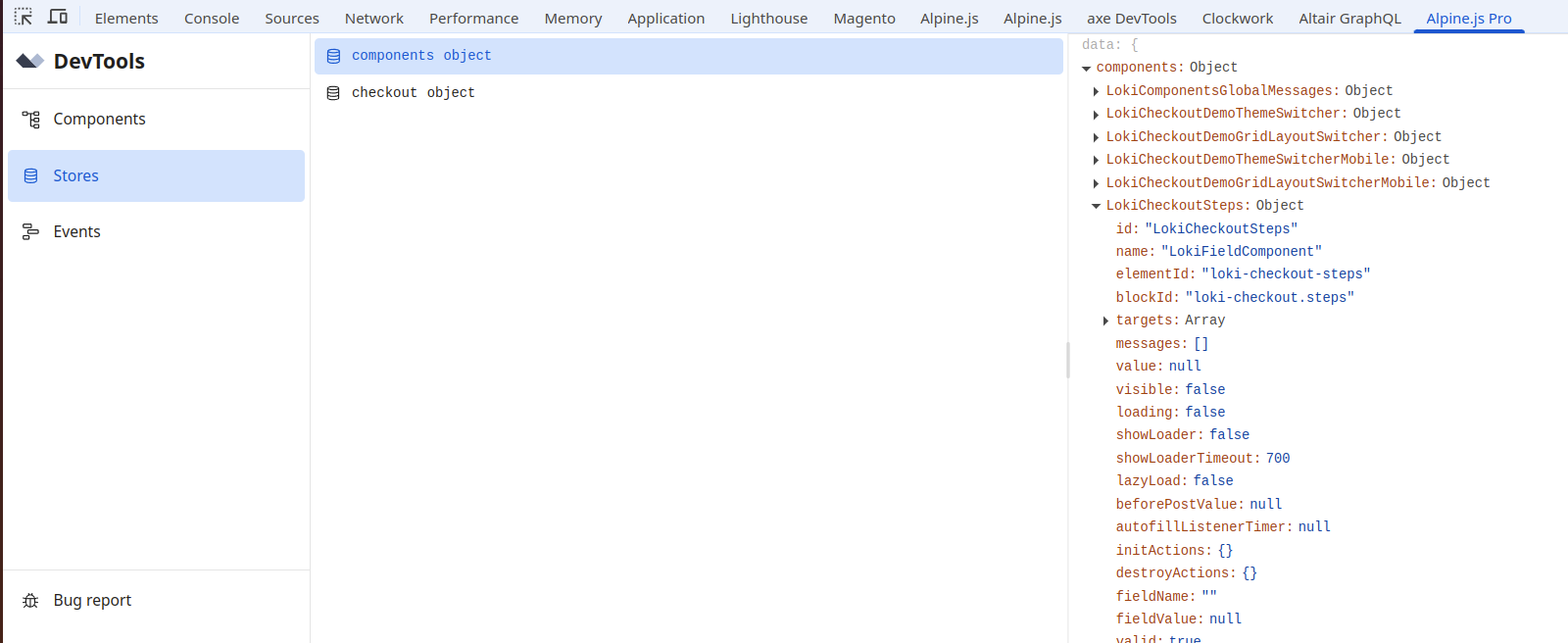
Components store
The LokiComponents store is defined in the PHTML template Loki_Components::script/components-store.phtml.
Every time that a LokiComponent is created, it registers itself in the LokiComponents store:
Alpine.store('LokiComponents').add(this);
And thanks to this registration, one component is able to make a connection to another component via the store - provided you know the name of that component. Each LokiComponent has a unique id (which is actually based upon the Magento block name, turned into camelcase) which becomes the name in the store.
Alpine.store('LokiComponents').get(componentName);
To list all components, we can do the following:
Alpine.store('LokiComponents').getComponents();
This returns an array of all Alpine components. However, you should note that in AlpineJS, each component is actually an object with a Proxy in front of it. In other words, each entry in the getComponents() is a Proxy. To list all component IDs instead, you can use the following:
Alpine.store('LokiComponents').getComponentIds();
Adding global messages
Following from this, we can add global messages via Alpine like so:
const globalMessageComponent = Alpine.store('LokiComponents').get('LokiComponentsGlobalMessages');
globalMessageComponent.messages.push({
    type: 'notice',
    text: 'Hello World'
});
Checkout store
The LokiCheckout store is defined in the PHTML template Loki_Components::script/components-store.phtml. The LokiCheckout store acts as a decorator upon the LokiComponents store. The following calls are identical:
Alpine.store('LokiComponents').getComponentIds();
Alpine.store('LokiCheckout').getComponentIds();
On top of this, the LokiCheckout store adds various additional methods that are handy in the checkout specifically. For instance, most LokiComponents in the checkout also have a step identifier and field name. And we can retrieve specific components by step and field name like so:
Alpine.store('LokiCheckout').getComponentByFieldNameAndStep('country_id', 'shipping').id;
The current step is fetched like so:
Alpine.store('LokiCheckout').currentStep;
Listing invalid components
In a similar way, the LokiCheckout adds validation to each field (component.valid). And this could be used again to fetch all AlpineJS component that are invalid (component.valid = false):
Object.values(Alpine.store('LokiCheckout').getInvalidComponents('shipping')).forEach(component => console.log(component.id));
The LokiCheckout supports multiple steps and advanced customizations to the step logic. This page gives you the details that you need for this.
What are steps?
Steps are nothing more than child blocks to the parent block loki-checkout.steps. They do not need to be registered, except for the fact that they need to be a LokiComponent with a ViewModel that implements LokiCheckout\Core\Component\Checkout\Step\StepViewModelInterface and that they need to be registered in the etc/loki_checkout.xml file.
For example, the default theme is defined in the etc/loki_checkout.xml file of the LokiCheckout_Core module as follows:
<?xml version="1.0" encoding="UTF-8" ?>
<config xmlns:xsi="http://www.w3.org/2001/XMLSchema-instance" xsi:noNamespaceSchemaLocation="urn:magento:module:LokiCheckout_Core:etc/loki_checkout.xsd">
    <themes>
        <theme name="default" label="Multi Step Checkout (default)">
            <steps>
                <step name="shipping" blockName="loki-checkout.steps.shipping" />
                <step name="billing" blockName="loki-checkout.steps.billing" />
            </steps>
        </theme>
    </themes>
</config>
Next, in the XML layout file loki_checkout_theme_default.xml, the step blocks are placed within the parent block loki-checkout.steps.
StepNavigator
Steps are automatically detected by the class LokiCheckout\Core\Step\StepNavigator (dubbed here as StepNavigator). The StepNavigator maintains a list of all steps. It knows the current step (stored in the checkout session), it knows how many steps there are, what the first step is, what the last step is, it is able to go back and forward, etcetera.
A step (so actually an instance of StepViewModelInterface) has multiple flags that are important within the StepValidator.
- Enabled or not: When a step is not enabled, it is removed from the list of steps.
- Accessible or not: When a step is enabled but not accessible, it is shown in the navigation, but you simply can not navigate to it.
- Visible or not: When a step is enabled and accessible, it is visible when it is shown. Normally, this simply defaults to true. However, when a one-page checkout is used, this flag allows toggling the visibility of the step in Alpine.js.
The step button component
The step button (forward or backward) is a Loki Component, so it is rendered via ComponentViewModel and whenever the button is hit, a POST message is sent via AJAX to Magento, where it is handled by the ComponentRepository. In the case of the forward button, this is LokiCheckout\Core\Component\Checkout\StepButton\StepForwardButton\StepForwardButtonRepository. There, logic is handed over to the LokiCheckout\Core\Step\StepNavigator to navigate to the next step. Each step allows validation, so that is validation fails, the next step is never navigated to.
A special story deals with the final step (as in: when the current step is actually the last step in the checkout). At this moment, the step navigator calls upon LokiCheckout\Core\Step\FinalStep which validates (calling upon the regular quote validator) and submits the last details. For instance, the quote is converted into an order, events are being dispatched, an email is being sent, etcetera.
Adding a new step
When a LokiComponent is busy with the AJAX call (storing its value in Magento and/or updating HTML elements on the page), the Alpine component allows you to hook into this loading state in various ways.
The Alpine property loading
Each LokiComponent ships with an Alpine property loading which is false by default, but which is set to true while the POST request is running. Elsewhere, the property loading is watched for further functionality. However, you could already show a simple loading text, based on this:
<span x-show="loading">Loading ...</span>
A fancier example could be the following:
<div x-cloak x-show="loading" class="<?= $css('inline-block mr-3 w-4 animate-spin fill-white', 'icon') ?>">
    <?= $imageOutput->get('Loki_FieldComponents::images/spinner.svg') ?>
</div>
Setting the aria-busy attribute
A single LokiComponent update could also involve a refresh of other HTML attributes on the page. While making the AJAX call, each target is resolved into the corresponding HTML element and the aria-busy HTML attribute is set. This also counts for the component itself.
If the HTML element contains a child element that shows some kind of loading image, then this child element could be hidden by default but shown again via CSS based upon this aria-busy attribute. A lot of LokiCheckout components use this logic as follows:
<div class="<?= $css('relative') ?>">
    <?= $blockRenderer->html($block,'loki-field-components.utils.loader-overlay') ?>
    ...
</div>
Here the <div> element equals the root of the Alpine component, where aria-busy is set. Next, the block loki-field-components.utils.loader-overlay is used to display an image loader. By default, this block has the display:none CSS rule set (via the Tailwind class hidden).
With the corresponding CSS the loader overlay is shown conditionally:
 [aria-busy] > .loader-overlay {
    display: flex;
}
Setting the loading property in other Alpine components
The post() method tries to map each target name into another LokiComponent on the page. And if that LokiComponent is found, the loading property of that LokiComponent is toggled as well.
This causes the possibility that a single component update triggers multiple loaders on the page.
Delayed loader with showLoader
Above it was already explained how a loader overlay was shown. With many field components, a smaller loader image is shown within the field input itself:
<div x-cloak x-show="showLoader" class="<?= $css('field-loader flex absolute inset-y-0 right-0 pt-1 pr-2', 'loader') ?>">
      <?= $blockRenderer->html($block, 'loki-field-components.utils.loader-small') ?>
</div>
Apart from different Tailwind classes, it is the same logic. Except for that a different Alpine property showLoader is used. While the loading property is set once the AJAX call is initiated, the showLoader property toggles only after a slight delay. This delay is set via the property showLoaderTimeout. (Note that you can change any property of a LokiComponent via the getJsData() method of its ViewModel and with that, the XML layout.)
The reason for this is an esthetic reason: In a production environment, often component updates are fast and take little more than 300ms. If every single change would popup that loader for just a split second, it will confuse users. Because of this, the delayed showLoader approach allows for showing the loader only, if the user really needs to be informed of the fact that the update is not instant.
The default showLoaderTimeout is 700ms, which should make for a visually appealing updating experience.
The CSS class loading for fields
A complementary way of styling the loading state of fields is by using the CSS class loading. This is added to all components that are derived from the LokiFieldComponent component data (or actually derived from the LokiFieldComponentType component type).
A simplified version of such a component might look like the following:
<div x-data="LokiFieldComponent" x-title="FooBar">
    <script ref="initialData" type="text/x-loki-init">{}</script>
    <input x-model="value" @change="submit" x-ref="field" class="foobar" />
</div>
Here, the <div> element serves as the root of an Alpine component FooBar which uses the LokiFieldComponent component data. The <input> element is connected to the Alpine property value via x-model. And every time the value is changed, it is posted to the server by using submit().
Now note the x-ref. Within the component logic, this is used by a watcher on the Alpine property loading. Whenever the loading value is true, the CSS class loading is added. Whenever the loading value is false, the CSS class loading is removed again.
Additionally, the aria-busy attribute and disabled attribute are also added to the field.
The resulting HTML while loading might look like the following:
<div x-data="LokiFieldComponent" x-title="FooBar" aria-busy>
    <script ref="initialData" type="text/x-loki-init">{}</script>
    <input x-model="value" @change="submit" x-ref="field" class="foobar loading" aria-busy disabled />
</div>
CSS classes
Each shipping method and payment method in the list is accompanied with a couple of additional CSS classes:
active: If the method is currently selected by the customer;inactive: If the method is not currently selected by the customer;enabled: If the method is enabled in the Magento Admin Panel;disabled: If the method is disabled in the Magento Admin Panel;
The last two CSS classes might be a bit confusing. For shipping methods, there is often a setting called Show Method if Not Applicable. If a method is not applicable but still shown, the CSS class disabled is shown. For payment methods, the same logic is used, except that there is no core logic to show a payment method while it is not applicable. If you don't care about this, it is best to ignore the CSS classes enabled and disabled.
Loki Checkout components can update the state of the quote via their component repository and then read quotes values again from their component ViewModel. When AJAX calls are handled by the Loki_Components module, repositories are dealt with first and then blocks are rendered with help of their ViewModels. Because of those flows, normally, it does not matter in which order the components are rendered.
An exception to this story is when the ViewModel loads (and saves!) a default value to the quote. For instance, the block loki-checkout.shipping.methods is able to load a default shipping method which is then saved to the quote (if not already). And this potentially changes the way that other blocks like the sidebar is loaded.
Because of this, the block loki-checkout.shipping.methods is loaded before other blocks by setting a block argument render_order (which defaults to 0):
<block name="loki-checkout.shipping.methods">
	<arguments>
    	<argument name="render_order" xsi:type="number">-1</argument>
   	</arguments>
</block>
In the same way, the block loki-checkout.sidebar.totals is rendered after all other blocks:
<block name="loki-checkout.sidebar.totals">
   	<arguments>
    	<argument name="render_order" xsi:type="number">10</argument>
	</arguments>
</block>
Do not randomly add render_order to any block, this wil quickly becomes a mess. Instead, let us know if issues arise from the rendering order, so we can work together towards a proper fix.
In general with Magento 2, it is possible to override public methods of a given class by creating a DI plugin (aka an interceptor with methods prefixes like before, after and around). This mechanism can be applied as well to classes within LokiCheckout extensions. For instance, by modifying repositories and ViewModels that are attached to Loki Components.
The only word of warning here is that code might change: Intercepting methods that are also part of the parent interfaces is safe, because those methods are meant to remain backwards compatible. However, other methods might change. If you would like to make modifications on this level, first make sure to contact the core development team to see if such a change can be possibly created in a different way.
Each address form in the checkout is based upon the EAV entity customer_address. By adding a new EAV attribute to this entity, you can easily add your own form field to the checkout. On this page, you will see the steps involved for this.
Adding the EAV attribute to the database
First of all, you will need to add the EAV attribute to the database. This is usually done through a Patch class, but you can also use a third party extension for this (like the Amasty Customer Attributes) extension. The following shows an example Patch class that creates an example EAV attribute example:
namespace YireoTraining\Example\Setup\Patch\Data;

use Magento\Eav\Setup\EavSetup;
use Magento\Eav\Setup\EavSetupFactory;
use Magento\Framework\Setup\ModuleDataSetupInterface;
use Magento\Framework\Setup\Patch\DataPatchInterface;
use Magento\Eav\Model\Config as EavConfig;
use Magento\Customer\Model\ResourceModel\Attribute as AttributeResourceModel;


class AddExampleFieldToCustomerAddress implements DataPatchInterface
{
    public function __construct(
        private EavSetupFactory $eavSetupFactory,
        private ModuleDataSetupInterface $moduleDataSetup,
        private EavConfig $eavConfig,
        private AttributeResourceModel $attributeResourceModel
    ) {
    }

    public static function getDependencies()
    {
        return [];
    }

    public function getAliases()
    {
        return [];
    }

    public function apply()
    {
        $attributeCode = 'example';
        $attributeLabel = 'Example';
        $eavSetup = $this->eavSetupFactory->create(['setup' => $this->moduleDataSetup]);

        $eavSetup->addAttribute(
            'customer_address',
            $attributeCode,
            [
                'input' => 'text',
                'is_visible_in_grid' => false,
                'visible' => true,
                'user_defined' => true,
                'is_filterable_in_grid' => false,
                'system' => false,
                'label' => $attributeLabel,
                'position' => 10,
                'type' => 'varchar',
                'is_used_in_grid' => false,
                'required' => false,
            ]
        );

        $attribute = $this->eavConfig->getAttribute('customer_address', $attributeCode);

        return $this;
    }
}
Once this class has been created as part of a new module, running bin/magento setup:upgrade should create this EAV-attribute as a row in the database table eav_attribute (amongst others).
This example can be further extended by adding the attribute to frontend and backend forms. See the LokiCheckout_Coc module for a full example.
Adding a quote address column to the database
The above adds an attribute to the customer_address entity. While attributes of this entity are automatically copied into a quote address, it doesn't save the quote address attribute value yet. To save a value to the database, we can either add a new column to the quote_address table and sales_order_address table, or we could save things via an extension attribute.
In this example, we simply extend the tables. This can be done with the following db_schema.xml file:
<?xml version="1.0"?>
<schema xmlns:xsi="http://www.w3.org/2001/XMLSchema-instance" xsi:noNamespaceSchemaLocation="urn:magento:framework:Setup/Declaration/Schema/etc/schema.xsd">
    <table name="quote_address" resource="default">
        <column xsi:type="varchar" name="example" nullable="true" length="128" comment="Example"/>
    </table>
    <table name="sales_order_address" resource="default">
        <column xsi:type="varchar" name="example" nullable="true" length="128" comment="Example"/>
    </table>
</schema>
After running bin/magento setup:upgrade, the tables should be altered.
Creating a new block
Next, let's create a new block for this EAV attribute via an XML layout file loki_checkout_block_shipping_address.xml:
<?xml version="1.0"?>
<page xmlns:xsi="http://www.w3.org/2001/XMLSchema-instance" xsi:noNamespaceSchemaLocation="urn:magento:module:View/Layout:etc/page_configuration.xsd">
    <body>
        <referenceBlock name="loki-checkout.shipping.address.form">
            <block
                name="loki-checkout-example.shipping.address.example" as="example"
                template="Loki_FieldComponents::form/field.phtml"/>
        </referenceBlock>
    </body>
</page>
Note that the PHTML template Loki_FieldComponents::form/field.phtml is reused here. Normally, this is what you want: A lot of changes you might want to make to this field can be made via either the ViewModel or the XML layout.
Creating a component
To transform the block above into a full-blown LokiComponent, we need one more step. We need to add a new component to the etc/loki_components.xml file. The name of that component is identical to the name of the block. The group called shippingAddressFields includes a definition for a Context class, ViewModel class and Repository class which we can reuse here. These classes automatically match the name of the block (in our case example) with the attribute code of your EAV attribute (in our case example).
<?xml version="1.0" encoding="UTF-8" ?>
<components xmlns:xsi="http://www.w3.org/2001/XMLSchema-instance" xsi:noNamespaceSchemaLocation="urn:magento:module:Loki_Components:etc/loki_components.xsd">
    <component
        name="loki-checkout-example.shipping.address.example"
        group="shippingAddressFields"
    />
</components>
It might be that the original classes need to be modified. In this case, you would create your own classes, extending upon the original. This is actually done for all of the core component classes: Even though they don't have anything specific, they allow for an easier extensibility.
A more customized version could look the following:
<?xml version="1.0" encoding="UTF-8" ?>
<components xmlns:xsi="http://www.w3.org/2001/XMLSchema-instance" xsi:noNamespaceSchemaLocation="urn:magento:module:Loki_Components:etc/loki_components.xsd">
    <component
        name="loki-checkout-example.shipping.address.example"
        group="shippingAddressFields"
        viewModel="LokiCheckoutExample\Component\Checkout\Address\Example\ExampleViewModel"
        repository="LokiCheckoutExample\Component\Checkout\Address\Example\ExampleRepository"
    />
</components>
Enhancing the LokiComponent
You could also add <target/> elements, so that other HTML elements are refreshed when your component is being updated. You could add validators and filters as well.
Adding an extension attribute to the LokiCheckout is just as straight-forward as adding an EAV attribute. It is just that your database storage is not running via EAV, but via a customized extension attribute of your choice.
Prerequisites
The following example assumes that you have already added your own etc/extension_attributes.xml file to define a new extension attribute example for the \Magento\Quote\Api\Data\AddressInterface class. Also, we assume that you have found your way to load and save this extension attribute into the quote address, for instance, by adding a DI interceptor plugin to all methods of the \Magento\Quote\Api\CartRepositoryInterface class.
Creating a new block
Let's create a new block for this extension attribute via an XML layout file loki_checkout_block_shipping_address.xml:
<?xml version="1.0"?>
<page xmlns:xsi="http://www.w3.org/2001/XMLSchema-instance" xsi:noNamespaceSchemaLocation="urn:magento:module:View/Layout:etc/page_configuration.xsd">
    <body>
        <referenceBlock name="loki-checkout.shipping.address.form">
            <block
                name="loki-checkout-example.shipping.address.example" as="example"
                template="Loki_FieldComponents::form/field.phtml"/>
        </referenceBlock>
    </body>
</page>
Note that the PHTML template Loki_FieldComponents::form/field.phtml is reused here. Normally, this is what you want: A lot of changes you might want to make to this field can be made via either the ViewModel or the XML layout.
Defining your component
Within a file etc/loki_components.xml, we are defining our block as a component, including a ViewModel and a repository. The ViewModel is often quite generic, so we simply reuse a common class here. The repository is where the loading and saving of a field occurs - which is specific to our own extension attribute.
<?xml version="1.0" encoding="UTF-8" ?>
<components xmlns:xsi="http://www.w3.org/2001/XMLSchema-instance" xsi:noNamespaceSchemaLocation="urn:magento:module:Loki_Components:etc/loki_components.xsd">
    <component
        name="loki-checkout-example.shipping.address.example"
        group="checkout"
        viewModel="LokiCheckout\Component\Base\Generic\CheckoutViewModel"
        repository="LokiCheckoutExample\Component\Checkout\Address\Example\ExampleRepository"
    />
</components>
Note that there is a group checkout used here (it's definition can be found in the etc/loki_components.xml file of the core module LokiCheckout_Core) even though that group doesn't do much. You could also skip the group and add your own context instead.
Adding a repository class
The repository class LokiCheckoutExample\Component\Checkout\Address\Example\ExampleRepository simply fetches the extension attribute from the quote and sets it back into the quote. Instead of creating the repository from scratch, you can fetch the quote and cart repository from the context.
namespace LokiCheckoutExample\Component\Checkout\Example;

use Loki\Field\Component\Base\Field\FieldRepository;
use LokiCheckout\Component\Base\Generic\CheckoutContext;

/**
 * @method CheckoutContext getContext()
 */
class ExampleRepository extends FieldRepository
{
    public function getValue(): mixed
    {
        return $this->getContext()->getQuote()->getExtensionAttributes()->getExample();
    }

    public function saveValue(mixed $value): void
    {
        $this->getContext()->getQuote()->getExtensionAttributes()->setExample($value);

        $cartRepository = $this->getContext()->getCartRepository();
        $cartRepository->save($quote);
    }
}
Done
Every time that your field is now modified, it should trigger an AJAX call, which is then calling upon your repository class, which then saves things to the database. It should just work :)
Out of the box, payment methods that are registered in the Magento core automatically popup in the Loki Checkout as well. You don't need to do anything for this. However, it might be that things are not working perfectly yet by default or that you need more customization. This document outlines the possibilities.
A custom module is needed:
- When a custom redirect is needed;
- When you want to add a custom logo for each payment method;
- When you want to add a custom form within the checkout;
- When your payment provider is driven by a JavaScript API;
Let's talk instead of hack
With Loki Checkout, we aim for an easy integration of payment methods, where the code of one solution is easily reused for another. Keep it simple stupid. However, if this does not apply to your own customization, do not hack the code randomly to get things working.
Instead, get in touch so we can head for the best technical solution with the lowest technical debt.
Assumptions on this page
We assume that there is already an existing Magento 2 extension available for the PSP of choice. And we assume that this extension has been installed already. If this existing module already supports the session property redirect_url, you are almost done.
If not, a LokiCheckout module is definitely needed.
Handling redirects via the session property redirect_url
If a payment method is supposed to redirect to another page, after leaving the checkout, the simplest way to do this is to set the redirect_url property in the checkout session.
$this->checkoutSession->setRedirectUrl('/example');
This assumes that the redirect_url variable is already set somewhere in the logic of the existing payment module. For instance, the module might be hooking into the following observable events:
checkout_type_onepage_save_order_aftercheckout_controller_onepage_saveOrder
Our advice: Test things to see if it already works or not. If it does not, you need to build a LokiCheckout module.
Building a LokiCheckout module
A LokiCheckout module is a Magento module that depends on LokiCheckout_Core (both via the module.xml file and as a composer dependency). Likewise, we recommend you to have a README.md and CHANGELOG.md (based on Keep a Changelog).
You could create a new Magento module in the way you see fit. Alternatively, you might want to create a new module based upon the LokiCheckout_EmptyPayment module. To use one module as a template for another new module, you could use our Yireo_ModuleDuplicator to rename sources quickly.
All specific payment steps are outlined below anyway.
Handling redirects via a redirect resolver
A more advanced alternative is to hook into the LokiCheckout redirect resolver listing. Create a class that implements the interface LokiCheckout\Payment\Redirect\RedirectResolverInterface:
namespace Yireo\Example\Payment\Redirect;

use Magento\Framework\UrlFactory;
use LokiCheckout\Payment\Redirect\RedirectResolverInterface;
use LokiCheckout\Step\FinalStep\RedirectContext;

class RedirectResolver implements RedirectResolverInterface
{
    public function __construct(
        private UrlFactory $urlFactory,
    ) {
    }

    public function resolve(RedirectContext $redirectContext): false|string
    {
        return $this->urlFactory->create()->getUrl('/example');
    }
}
Your new class needs to be registered with the LokiCheckout mechanism by adding a etc/frontend/di.xml file that adds your class to the constructor argument redirectResolvers of the class LokiCheckout\Payment\Redirect\RedirectResolverListing:
<?xml version="1.0"?>
<config xmlns:xsi="http://www.w3.org/2001/XMLSchema-instance" xsi:noNamespaceSchemaLocation="urn:magento:framework:ObjectManager/etc/config.xsd">
    <type name="LokiCheckout\Payment\Redirect\RedirectResolverListing">
        <arguments>
            <argument name="redirectResolvers" xsi:type="array">
                <item name="example" xsi:type="object">Yireo\Example\Payment\Redirect\RedirectResolver</item>
            </argument>
        </arguments>
    </type>
</config>
Adding a custom logo via an icon resolver
Within the payment method selection panel of the checkout (template LokiCheckout_Core::checkout/billing/payment-methods.phtml), payment methods are shown with a radiobox and a label. This can be extended with a logo which is displayed via the PHTML template LokiCheckout_Core::checkout/billing/payment-methods/icon.phtml. Within this template, a ViewModel LokiCheckout\ViewModel\PaymentMethodIcon is being used to determine the output of an icon image (literally, the HTML of that icon).
The ViewModel yet again makes use of an icon resolver logic to try to map the payment method to a relevant icon. For this, first create a new class:
<?php declare(strict_types=1);

namespace Yireo\Example\Payment\Icon;

use Magento\Framework\Module\Manager as ModuleManager;
use LokiCheckout\Payment\Icon\IconResolverContext;
use LokiCheckout\Payment\Icon\IconResolverInterface;

class IconResolver implements IconResolverInterface
{
    public function resolve(IconResolverContext $iconResolverContext): false|string
    {
        return '<img src="foobar.png" />';
    }
}
Your new class needs to be registered with the LokiCheckout mechanism by adding a etc/frontend/di.xml file that adds your class to the constructor argument iconResolvers of the class LokiCheckout\Payment\Icon\IconResolverListing:
<?xml version="1.0"?>
<config xmlns:xsi="http://www.w3.org/2001/XMLSchema-instance" xsi:noNamespaceSchemaLocation="urn:magento:framework:ObjectManager/etc/config.xsd">
    <type name="LokiCheckout\Payment\Icon\IconResolverListing">
        <arguments>
            <argument name="iconResolvers" xsi:type="array">
                <item name="example" xsi:type="object">Yireo\Example\Payment\Icon\IconResolver</item>
            </argument>
        </arguments>
    </type>
</config>
Common icon patterns
In the example above, a simple image foobar.png is returned. Obviously, you'll want to return the actual static content URL for this image. You can do that for instance via the method Magento\Framework\View\Element\AbstractBlockgetViewFileUrl() (by injecting Magento\Framework\View\Element\Template into your resolver class) - a bit ugly but it works nicely.
When working with image URLs, you might want to take a look at the ViewModel class Loki\Field\ViewModel\ImageOutput.
In the case of an SVG, it might be better to output the SVG directly (bypassing an <img> tag):
$iconFilePath = $iconResolverContext->getIconPath(
    'Yireo_Example',
    'view/frontend/web/images/example.svg'
);

return $iconResolverContext->getIconOutput($iconFilePath, 'svg');
Adding a custom form
The payment templates also allow for child templates to be added for the purpose of forms and additional things (like scripts). In this example, we'll use a custom payment method with code foobar:
- Block name
loki.checkout.payment.methods.foobar.form - Block name
loki.checkout.payment.methods.foobar.additional
These blocks do not exist yet, but you can easily add them yourselves. For instance, with a XML layout file loki_checkout_block_payment_methods.xml a block for the form can be created at the global level as follows:
<?xml version="1.0"?>
<page xmlns:xsi="http://www.w3.org/2001/XMLSchema-instance" xsi:noNamespaceSchemaLocation="urn:magento:module:View/Layout:etc/page_configuration.xsd">
    <body>
        <block
            name="loki.checkout.payment.methods.foobar.form"
            template="Yireo_Example::method/foobar.phtml"/>
    </body>
</page>
In this case, you can see that the block is just a plain PHTML template. How you want to build a HTML form in the PHTML template and link this to the PHTML template, is up to you. This could be custom logic, for instance a complete Loki Component.
Integrating JavaScript APIs (asynchronously)
Every time a payment method is selected, a JavaScript event checkout:payment:method-activate is triggered. You can use this event to initialize your payment solution or to send data forth and back.
You can listen to the event as follows:
window.addEventListener('checkout:payment:method-activate', event => {
    if (event.detail.method !== 'foobar') {
        return;
    }

    // Do your magic
    window.exampleMagic();
});
Integrating JavaScript APIs (synchronously)
If you want to guarantee that the data in your payment method logic are 100% valid before proceeding, the right way to hook into the LokiCheckout logic is via the beforePostNextStep method:
Whenever the next-step button (LokiCheckoutStepForwardButton component) is used to move to the next step (with payments, this is often the last and final step), the button logic makes sure that all components in that step are valid. During this phase, the button logic also tries to call upon a component its beforePostNextStep method (if it exists). You can use this to synchronously call upon your logic (maybe by using async and await if needed) and set the valid flag of your component to false. Or you could proceed by posting your data to your own component repository in PHP.
The following example assumes that you have setup a LokiComponent with a custom Alpine component and component repository in PHP (to receive the data sent from the JavaScript side):
document.addEventListener('alpine:init', () => {
    Alpine.data('LokiCheckoutExamplePaymentComponent', () => ({
        ...LokiCheckoutComponentType,
        async beforePostNextStep() {
            const example = await window.exampleMagic();
            if (example.errors) {
                this.setValid(false);
                return false;
            }

            this.post(example);
            return true;
        }
    }));
});
A simple component Adding a `ComponentRepository` JavaScript compatibility
Out of the box, shipping methods that are registered in the Magento core automatically popup in the Loki Checkout as well. You don't need to do anything for this. However, it might be that things are not working perfectly yet by default or that you need more customization. This document outlines the possibilities.
A custom module is needed:
- When you want to add a custom logo for each shipping method;
- When you want to add a custom form within the checkout;
- When delivery dates need to be picked from a listing;
- When pickup locations need to be displayed on a map;
- ...
Let's talk instead of hack
With Loki Checkout, we aim for an easy integration of shipment methods, where the code of one solution is easily reused for another. Keep it simple stupid. However, if this does not apply to your own customization, do not hack the code randomly to get things working.
Instead, get in touch so we can head for the best technical solution with the lowest technical debt.
Assumptions on this page
We assume that there is already an existing Magento 2 extension available for the PSP of choice. And we assume that this extension has been installed already.
If not, a LokiCheckout module is definitely needed.
Building a LokiCheckout module
A LokiCheckout module is a Magento module that depends on LokiCheckout_Core (both via the module.xml file and as a composer dependency). Likewise, we recommend you to have a README.md and CHANGELOG.md (based on Keep a Changelog).
You could create a new Magento module in the way you see fit. Alternatively, you might want to create a new module based upon the LokiCheckout_EmptyShipment module. To use one module as a template for another new module, you could use our Yireo_ModuleDuplicator to rename sources quickly.
All specific shipment steps are outlined below anyway.
Adding a custom logo via an icon resolver
Within the shipment method selection panel of the checkout (template LokiCheckout_Core::checkout/shipping/shipping-methods.phtml), methods are shown with a radiobox and a label. This can be extended with a logo which is displayed via the PHTML template LokiCheckout_Core::checkout/shipping/shipping-methods/icon.phtml. Within this template, a ViewModel LokiCheckout\ViewModel\ShipmentMethodIcon is being used to determine the output of an icon image (literally, the HTML of that icon).
The ViewModel yet again makes use of an icon resolver logic to try to map the shipment method to a relevant icon. For this, first create a new class:
<?php declare(strict_types=1);

namespace Yireo\Example\Shipment\Icon;

use Magento\Framework\Module\Manager as ModuleManager;
use LokiCheckout\Shipment\Icon\IconResolverContext;
use LokiCheckout\Shipment\Icon\IconResolverInterface;

class IconResolver implements IconResolverInterface
{
    public function resolve(IconResolverContext $iconResolverContext): false|string
    {
        return '<img src="foobar.png" />';
    }
}
Your new class needs to be registered with the LokiCheckout mechanism by adding a etc/frontend/di.xml file that adds your class to the constructor argument iconResolvers of the class LokiCheckout\Shipment\Icon\IconResolverListing:
<?xml version="1.0"?>
<config xmlns:xsi="http://www.w3.org/2001/XMLSchema-instance" xsi:noNamespaceSchemaLocation="urn:magento:framework:ObjectManager/etc/config.xsd">
    <type name="LokiCheckout\Shipment\Icon\IconResolverListing">
        <arguments>
            <argument name="iconResolvers" xsi:type="array">
                <item name="example" xsi:type="object">Yireo\Example\Shipment\Icon\IconResolver</item>
            </argument>
        </arguments>
    </type>
</config>
Common icon patterns
In the example above, a simple image foobar.png is returned. Obviously, you'll want to return the actual static content URL for this image. You can do that for instance via the method Magento\Framework\View\Element\AbstractBlockgetViewFileUrl() (by injecting Magento\Framework\View\Element\Template into your resolver class) - a bit ugly but it works nicely.
When working with image URLs, you might want to take a look at the ViewModel class Loki\Field\ViewModel\ImageOutput.
In the case of an SVG, it might be better to output the SVG directly (bypassing an <img> tag):
$iconFilePath = $iconResolverContext->getIconPath(
    'Yireo_Example',
    'view/frontend/web/images/example.svg'
);

return $iconResolverContext->getIconOutput($iconFilePath, 'svg');
Adding a custom form
The shipment templates also allow for child templates to be added for the purpose of forms and additional things (like scripts). In this example, we'll use a custom shipment method with code foobar:
- Block name
loki.checkout.shipping.methods.foobar.form - Block name
loki.checkout.shipping.methods.foobar.additional
These blocks do not exist yet, but you can easily add them yourselves. For instance, with a XML layout file loki_checkout_block_shipping_methods.xml a block for the form can be created at the global level as follows:
<?xml version="1.0"?>
<page xmlns:xsi="http://www.w3.org/2001/XMLSchema-instance" xsi:noNamespaceSchemaLocation="urn:magento:module:View/Layout:etc/page_configuration.xsd">
    <body>
        <block
            name="loki.checkout.shipping.methods.foobar.form"
            template="Yireo_Example::method/foobar.phtml"/>
    </body>
</page>
In this case, you can see that the block is just a plain PHTML template. How you want to build a HTML form in the PHTML template and link this to the PHTML template, is up to you. This could be custom logic, for instance a complete Loki Component.
A simple component Adding a `ComponentRepository` JavaScript compatibility
Delivery options and pickup locations
A lot of shipping methods offer delivery options and pickup locations. Reusing logic between modules is therefore a proper thing to do. With the LokiCheckout, various PHTML templates can be reused within a shipment logic:
LokiCheckout_Core::checkout/shipping/shipping-method/locations.phtmland child templatesLokiCheckout_Core::checkout/shipping/shipping-method/delivery-dates.phtmland child templates
These templates rely upon arrays of value objects to be passed via a parent block:
Loki\Components\Location\Location[]in the case of locations\LokiCheckout\Shipment\DeliveryDate[]in the case of delivery dates and timeframes
The location logic also supports displaying pickup locations on a map (based on LokiMapComponents).
Within the sidebar, the cart items are being shown - each with their corresponding product image. This playbook shows you how to customize things.
Changing image proportions
Create a file view/frontend/layout/loki_checkout.xml and add the following:
<?xml version="1.0"?>
<page xmlns:xsi="http://www.w3.org/2001/XMLSchema-instance" xsi:noNamespaceSchemaLocation="urn:magento:module:View/Layout:etc/page_configuration.xsd">
    <body>
        <referenceBlock name="loki-checkout.sidebar.items.item">
            <arguments>
                <argument name="size" xsi:type="number">80</argument>
            </arguments>
        </referenceBlock>
    </body>
</page>
This changes the size, which correspondingly changes the width and height.
If you want to change the width and height independent of each other, use the following:
<?xml version="1.0"?>
<page xmlns:xsi="http://www.w3.org/2001/XMLSchema-instance" xsi:noNamespaceSchemaLocation="urn:magento:module:View/Layout:etc/page_configuration.xsd">
    <body>
        <referenceBlock name="loki-checkout.sidebar.items.item">
            <arguments>
                <argument name="width" xsi:type="number">40</argument>
                <argument name="height" xsi:type="number">70</argument>
            </arguments>
        </referenceBlock>
    </body>
</page>
This playbook scenario goes through all steps to create a block. In this case, we are going to add a new field to the quote itself, called yireo_training_example.
Add a new database column to the quote
Create a file etc/db_schema.xml:
<?xml version="1.0"?>
<schema xmlns:xsi="http://www.w3.org/2001/XMLSchema-instance" xsi:noNamespaceSchemaLocation="urn:magento:framework:Setup/Declaration/Schema/etc/schema.xsd">
    <table name="quote" resource="default">
        <column xsi:type="varchar" name="yireo_training_example" nullable="true" length="255" comment="Yireo Training Example"/>
    </table>
</schema>
Also create a file etc/db_schema_whitelist.json:
{
  "quote": {
    "column": {
      "yireo_training_example": true
    }
  }
}
Run the database upgrade
bin/magento setup:upgrade
Confirm that the table quote has a new column yireo_training_example.
Add output to the checkout
Next, create a file view/frontend/layout/loki_checkout_block_customer.xml:
<?xml version="1.0"?>
<page xmlns:xsi="http://www.w3.org/2001/XMLSchema-instance" xsi:noNamespaceSchemaLocation="urn:magento:module:View/Layout:etc/page_configuration.xsd">
    <body>
        <referenceBlock name="loki-checkout.customer">
            <block
                name="loki-checkout.customer.yireo_training_example" as="yireo_training_example"
                template="Loki_FieldComponents::form/field.phtml">
                <arguments>
                    <argument name="field_label" xsi:type="string" translate="true">Yireo Example</argument>
                    <argument name="placeholder" xsi:type="string" translate="true">Enter some value</argument>
                </arguments>
            </block>
        </referenceBlock>
    </body>
</page>
Finally, create a file etc/loki_components.xml:
<?xml version="1.0" encoding="UTF-8" ?>
<components xmlns:xsi="http://www.w3.org/2001/XMLSchema-instance" xsi:noNamespaceSchemaLocation="urn:magento:module:Loki_Components:etc/loki_components.xsd">
    <component
        name="loki-checkout.customer.yireo_training_example"
        group="quoteFields"
    />
</components>
This XML file reuses definitions (viewModel, repository, context) from a group quoteFields. If those classes are sufficient, you don't need much else. You could also extend them with your own PHP classes. In that case, the etc/loki_components.xml entry needs to be updated as well.
Refresh the cache and voila!
bin/magento cache:flush
You should now see a new field in the checkout named Yireo Example. When a value is entered, an AJAX request will save the value into the quote table.
Where to go next?
-
See the documentation on Loki Field Components to learn what else you can configure via the XML layout;
-
If you want to add validators, filters or extend upon the component itself, go for the docs on Loki Components;
-
This XML file reuses definitions (
viewModel,repository,context) from a groupquoteFields. If those classes are sufficient, you don't need much else. You could also extend them with your own PHP classes. In that case, theetc/loki_components.xmlentry needs to be updated as well. -
There is no need to turn this into an extension attribute. However, if you want this to work easily in other non-checkout-related features (adding the attribute to the order email, the invoice email, the backend, etc), it is probably handy. But out-of-scope here. But if you would go for this, make sure to create your own component repository class.
**This playbook scenario goes through various customizations of the agreements - the technical name for the Terms and Conditions that can be configured in the Magento Admin Panel and shown in the checkout before placing the order.
Activating agreements
Make sure to enable the setting checkout/options/enable_agreements first. It can be configured in the Admin Panel via Store Configuration > Sales > Checkout > Checkout Options > Enable Terms and Conditions.
Managing the agreements
Agreements are managed via the page Stores > Settings > Terms and Conditions. All options, except the Content Height (css) are supported.
How the checkbox text is shown
Each agreement comes with a Checkbox Text. If this text is set to plain string, an additional link with the text Show Terms is created to allow people to see the terms in a popup. However, if the text contains an anchor tag <a> (without any attributes), the text within the anchor tag is used to create a link:
Agree with <a>terms and conditions</a>
In the end, this is translated into the following HTML:
Agree with <a @click="toggleModal" class="underline cursor-pointer">terms and conditions</a>
Moving the agreements block from sidebar to billing step
With the LokiCheckout, the position of a given Loki Components determines to which step that component belongs. For instance, a field in the shipping step is taken into account when validating the shipping step. This is the same for the agreements block, except for the fact that the Default Theme places this block in the sidebar, so that the step is set to any: Regardless of which step you are in, you first need to agree to the terms, before proceeding.
You might want to change this, so that the Terms and Conditions are only shown in the final step, for instance the billing step. This is easily done by moving the block to the billing step block.
Create a file view/frontend/layout/loki_checkout.xml and add the following:
<?xml version="1.0"?>
<page xmlns:xsi="http://www.w3.org/2001/XMLSchema-instance" xsi:noNamespaceSchemaLocation="urn:magento:module:View/Layout:etc/page_configuration.xsd">
    <body>
        <referenceBlock name="loki-checkout.agreements">
            <arguments>
                <argument name="sort_order" xsi:type="number">1</argument>
            </arguments>
        </referenceBlock>

        <referenceBlock name="loki-checkout.steps.billing.buttons">
            <arguments>
                <argument name="sort_order" xsi:type="number">2</argument>
            </arguments>
        </referenceBlock>

        <move element="loki-checkout.agreements" destination="loki-checkout.steps.billing" as="agreements" />
    </body>
</page>
A more advanced scenario, creates a new container agreements-container, adds the agreements to them and then orders them. Such an example can be found in the file loki_checkout_theme_demo.xml of the module LokiCheckout_Demo.
Changing the messages from local to global
By default, all Loki Components - so also the agreements component - add their messages as local messages. Within the template LokiCheckout_Core::checkout/other/agreements.phtml, a specific child block is rendered to allow for these messages to be displayed.
You can also turn these messages into global messages, popping up in the top of the screen. To do so, simply change the XML argument message_area into global. Note that this actually works for any Loki Component.
<referenceBlock name="loki-checkout.agreements">
    <arguments>
        <argument name="message_area" xsi:type="string">global</argument>
    </arguments>
</referenceBlock>
Adding new steps to the Loki Checkout is perfectly possible. It takes a few ... steps but the logic is (as we see it) quite straightforward.
XML layout definition
To add a new step in the checkout, first define a new block within the parent block loki-checkout.steps. In our example code, we refer to a new step called custom.
<referenceBlock name="loki-checkout.steps">
    <block
        name="loki-checkout.steps.custom"
        as="custom"
        template="Loki_Components::utils/container.phtml">

        <block
            name="loki-checkout.steps.custom.buttons"
            as="buttons"
            template="Loki_FieldComponents::form/button/buttons.phtml"
            after="-">
            <block
                name="loki-checkout.steps.custom.forward-button"
                template="Loki_FieldComponents::form/button/button.phtml">
                <arguments>
                    <argument name="button_label" xsi:type="string" translate="true">Next step</argument>
                </arguments>
            </block>
        </block>
    </block>
</referenceBlock>
The new block is currently a container (similar to a regular layout <container/> but with the support for $css() and improved child sorting). The container is empty by default, but to allow moving to the next step, a new button has been added to it. Note that the button contains zero logic (yet).
Upgrade the blocks to Loki Components
Both step block and button block need to be upgraded to a Loki Component. For this, we use the etc/loki_components.xml with something like the following:
<?xml version="1.0" encoding="UTF-8" ?>
<components xmlns:xsi="http://www.w3.org/2001/XMLSchema-instance"
            xsi:noNamespaceSchemaLocation="urn:magento:module:Loki_Components:etc/loki_components.xsd">
    <component
            name="loki-checkout.steps.custom"
            context="YireoTraining\Example\Component\Checkout\Step\CustomStep\CustomStepContext"
            viewModel="YireoTraining\Example\Component\Checkout\Step\CustomStep\CustomStepViewModel">
    </component>

    <component
            name="loki-checkout.steps.custom.forward-button"
            group="stepButtons"
            viewModel="LokiCheckout\Core\Component\Checkout\StepButton\StepForwardButton\StepForwardButtonViewModel"
            repository="LokiCheckout\Core\Component\Checkout\StepButton\StepForwardButton\StepForwardButtonRepository"
    />
</components>
For the step component it is required to implement a custom ViewModel. You could potentially skip the context class, but do read the docs here.
The button component is reusing all logic from the regular StepForwardButton component. In a similar way, you can also add a StepBackwardButton as well.
Step component ViewModel
The step component its ViewModel class needs to implement a LokiCheckout\Core\Component\Checkout\Step\StepViewModelInterface. The easiest way is to extend upon LokiCheckout\Core\Component\Checkout\Step\AbstractStepViewModel.
namespace YireoTraining\Example\Component\Checkout\Step\CustomStep;

use LokiCheckout\Core\Component\Checkout\Step\AbstractStepViewModel;

class CustomStepViewModel extends AbstractStepViewModel
{
    public function getCode(): string
    {
        return 'custom';
    }

    public function getLabel(): string
    {
        return 'Custom';
    }
}
Obviously, you can override more methods and add more logic to the step. But these are the basics to get you started.
Take note that the validate() method, which is required by StepViewModelInterface, is implemented in the AbstractStepViewModel to simply always return true. Either you override the validate() method to add custom logic, or you implement a context in the way like we did.